

Kadratis 26.11.9: what's new since 26.11.1
Eight releases have shipped since 26.11.1, with notable new features: imports run advanced duplicate detection, lists allow bulk changes (Kad too), and finer management of budget access rights improves collaboration in the budgeting process. A tour of what is new.
This article goes through the main changes, up to 26.11.9, released on November 22:
- An import, from the screen or through Kad, finds the records that exist before creating any.
- One field can be changed on a whole selection of budget lines or applications, from the list or by asking Kad.
- Suppliers, companies, contacts, departments and contracts have a reference, such as
SUP-12orCTR-5. - Access rights can be managed more finely.
- Support agents find the right document whatever the language of the ticket.
Duplicate detection in imports
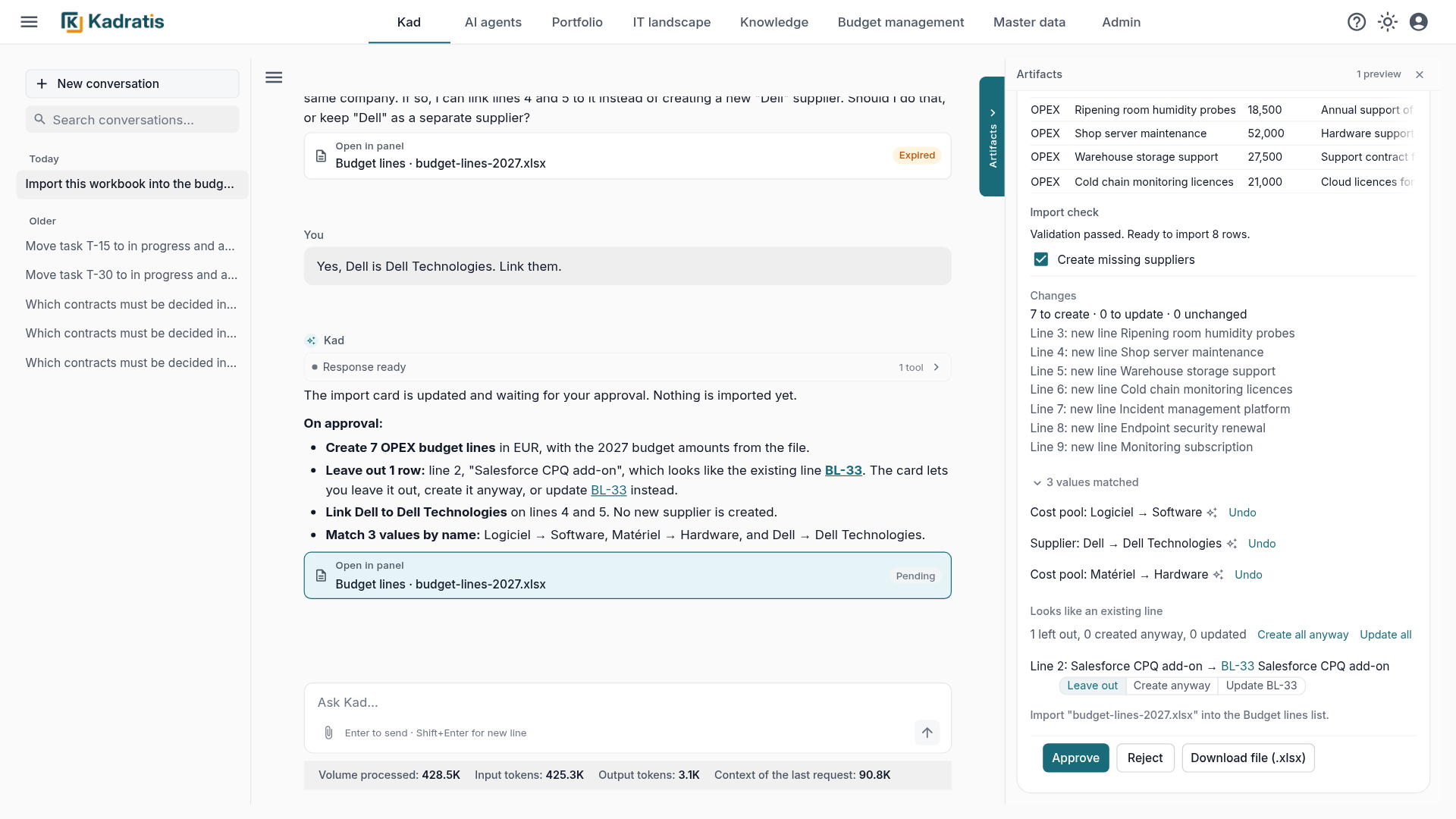
People are often less than rigorous: “Dell” for “Dell Technologies”, a supplier without its accent, a cost type in another language. In a data import, each difference then becomes an error to identify and fix, or a duplicate record.
Match before creating. Every import now finds a record by its name, ignoring case and accents. The budget file thus matches its suppliers, its companies and its dimension values; on the recommended dimensions, it also recognizes a value written in another language, Matériel for Hardware. Kad goes further: for a name written differently, a translation or a short form, it suggests the existing record. Each match is listed in the review and can be undone before the import.
A line already entered does not become a second line. A budget line or an application in the file that looks like an existing record is set aside by default. For each one, you choose to create it anyway or to update the record it resembles.
Warnings on what is out of the ordinary. The review of the budget file flags, without blocking, an amount ten times higher or lower than that of comparable lines, dates outside the years of the amounts, and a currency other than that of the paying company.
One rule for empty cells. In every import, an empty cell keeps the saved value, - clears it, and a column missing from the file is left untouched. The review counts the values that will be cleared. A file can therefore carry only the reference of the records and the columns to change, and a file exported then imported as is changes nothing.
A budget imported by Kad in a single card. You attach the workbook to the conversation, saying “Import this data”, and Kad shows the column mapping, the matches, the look-alike lines and the suppliers it will create. Nothing is written before you approve.
A trace for every import. The audit log records every import, made from a screen or through Kad. The History tab of each record created or changed names the person (or Kad).
See the CSV and Excel files and Load a budget from a spreadsheet pages of the manual.
Change in bulk, from the list or through Kad
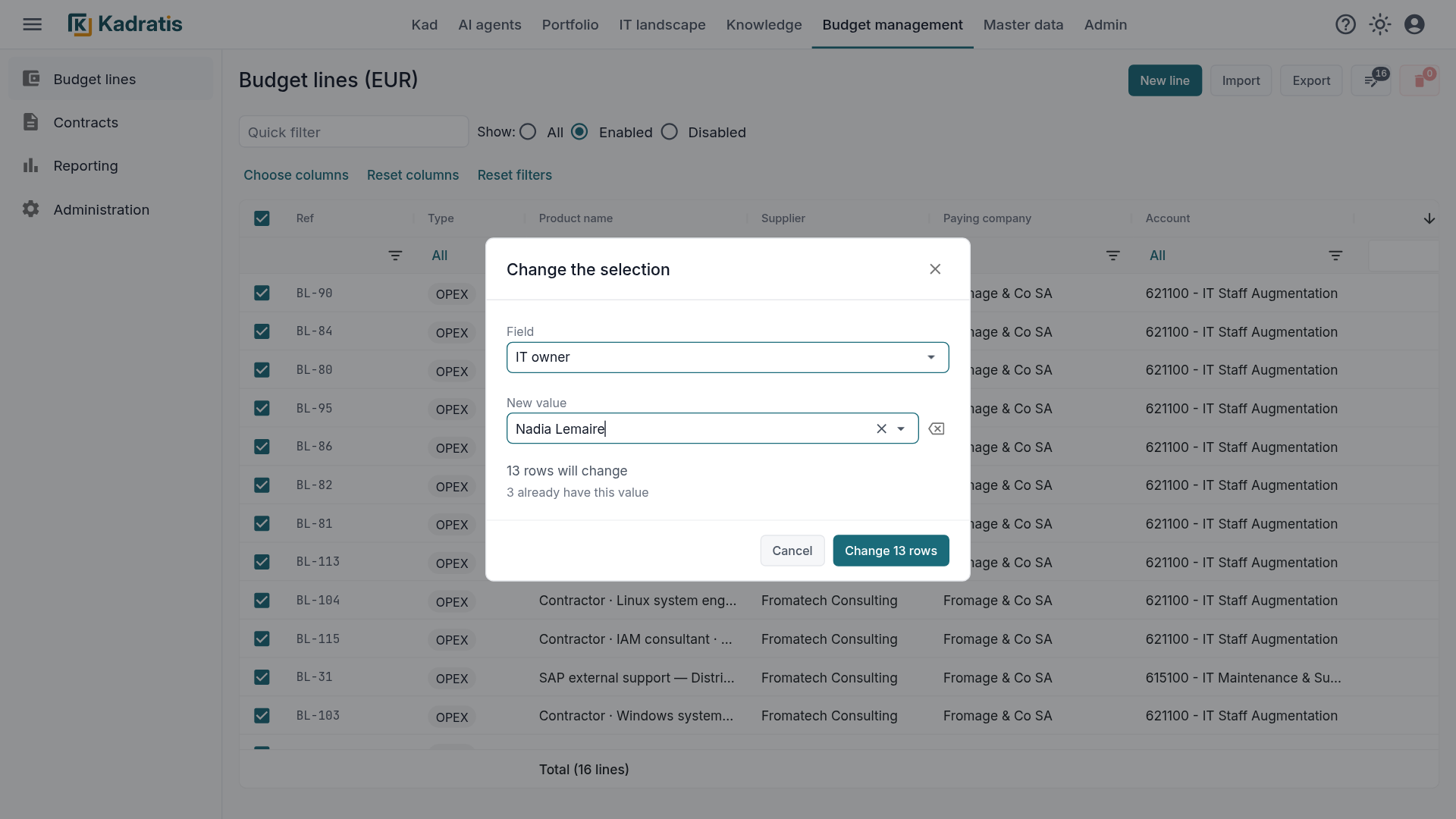
A reorganization, an owner who moves to another team, a supplier that has been acquired: these changes touch dozens of records at once.
From the list. In budget lines and applications, tick records or take the whole filter, then click Change the selection. You choose the field and its new value. The dialog counts the records that will change, those that already have this value and those that are refused, with the reason, then shows the result.
- On budget lines: the cost center, the account, the paying company, the supplier, the owners, a dimension value, run or build. Amounts cannot be changed this way.
- On applications: the owners, the category, the lifecycle, the business criticality and the cyber criticality.
This scope will be extended gradually.
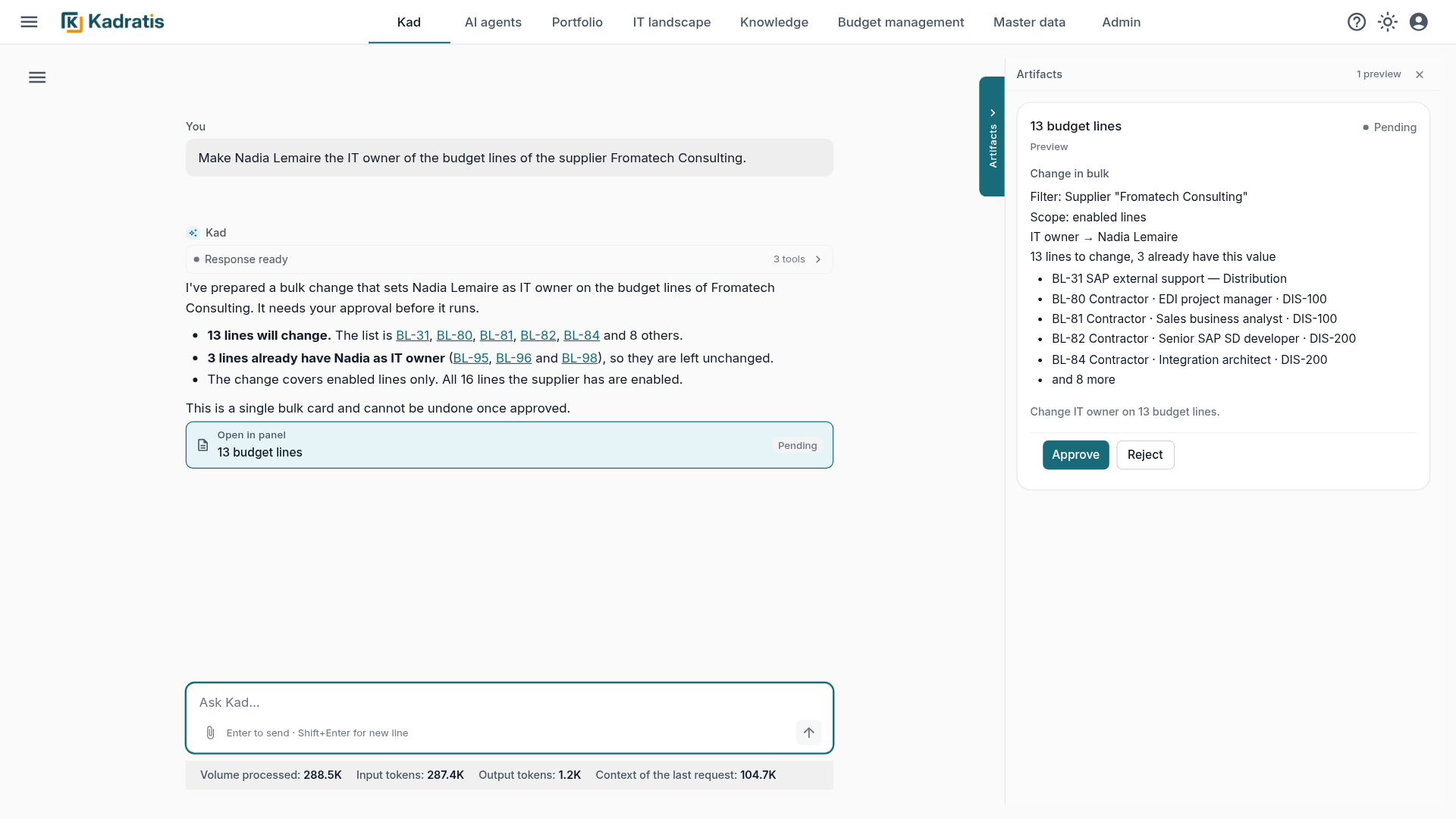
By asking Kad. “Make Nadia Lemaire the IT owner of the budget lines of the supplier Fromatech Consulting”: Kad prepares a single card, which shows the records concerned, the new value and the same counts. You approve, and the history of each record shows the change as made by Kad on your behalf. When several cards are waiting, Reject all joins Approve all.
See Changing lines in bulk and Changing records in bulk with Kad.
A reference for every record
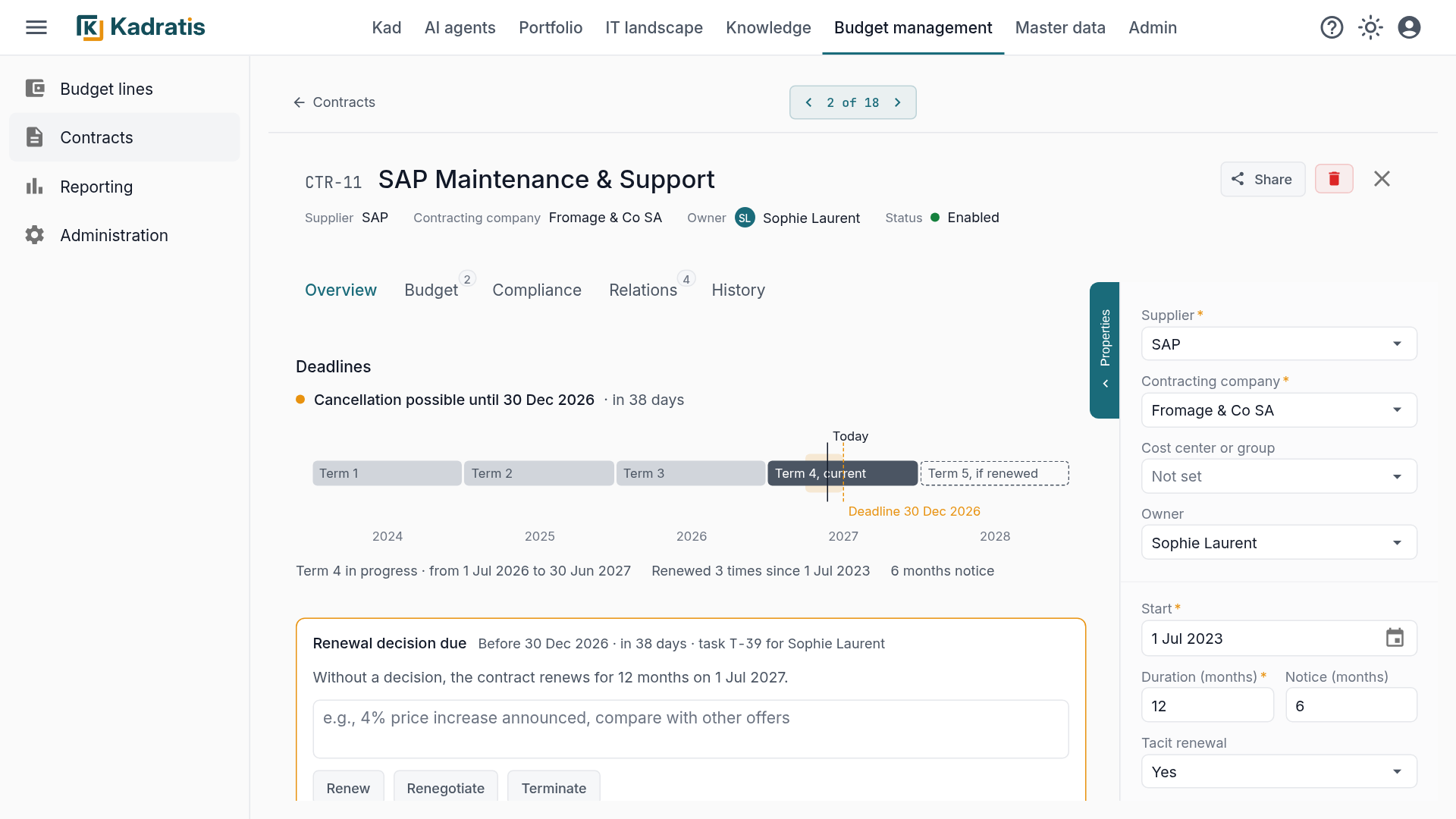
Projects, applications and budget lines already had theirs (PRJ-3, APP-7, BL-12). Suppliers, companies, contacts, departments and contracts now receive one too: SUP-12, COMP-3, CTCT-8, DEPT-2, CTR-5.
Wherever the record appears. The reference appears on the record’s page, in its list (filter, sort, export), in its address and in the links that lead to it. Global search, pickers, the @ mention, Kad and the MCP server find a record by its reference.
A key for imports. A file row that carries the reference updates that record, even if its name has changed: renaming a supplier through an import does not create a duplicate. The review flags each record that will be renamed.
Portfolio contributors, which carried the CTR prefix, become MEM-n. Addresses saved before this release still open the right contributor.
Finer rights
A cost center is enough to edit. For a person whose data access is limited, a node at Edit on a cost center, or on a group above it, allows editing the budget lines charged to that center and the contracts placed on it, whatever company pays. Creating or moving a line still requires the center’s company. See the Data access page of the manual.
You only grant the rights you have. A person who administers users without being an Administrator grants only the roles they hold, and sees as read-only the people who have more rights than they do. A workspace always keeps at least one active Administrator.
Links follow read rights. The history of a project, the journal of an incident or the Applications field of a task name only the linked records the person can read. The others are counted. Kad and the MCP server follow the same rule.
Microsoft sign-in. A first Microsoft sign-in no longer links an existing account on its address alone: its holder confirms the link from an e-mail, and the account keeps its password.
Support agents find the right document
In every language. Support agents and Kad find a knowledge base document whatever the language of the ticket: English, French, German or Spanish. An agent quotes the passage that answers, wherever it sits in a long document, and writes its reply from the text of the documents it selected. It reads only published documents.
Libraries chosen per agent. An agent searches and quotes only in the libraries an administrator opens to it. A new agent starts with none.
Internal notes stay internal. A support agent uses or ignores the internal notes of a ticket, as you choose. When used, they inform the choice of its actions and its note to the technician. Its replies to the requester rely only on public messages.
Close and solve. With the status update set to Automatic, an agent also closes and solves tickets, after sending its reply to the requester.
Other improvements
- The first steps follow your data. With your own data, a step is ticked as soon as the item exists in the workspace. The hint for a step sits in a bubble at the bottom left of the window, and the path can be changed at any time from the tile. During the trial, an administrator can start again from the complete example.
- Record creation. A new record is saved only when you create it: leaving the page before that writes nothing. Create marks the required fields still empty in red.
- Contacts created from the list. Wherever you choose a contact, the list ends with + New contact; the supplier list of a contract or a budget line ends with + New supplier.
- Empty lists offer to create. An empty list of locations, assets, companies or contacts shows a create button in its middle.
- End of support. The technology list shows the next end of support, standard or extended. On an application, the end of support of each technology is the one from the report, coloured by its status.
- Default budget column. The line list follows a change of the default column, and the Budget tab of a line opens on it.
- Data entry. A new budget line starts on January 1 of the year shown. Decimal numbers follow the interface language. A date typed without separators keeps its month:
01012026becomes 01/01/2026. - Integrations. Changing the address of an integration (GLPI, PRTG, Netbox) or the server of an AI model asks again for its token or key.
For on-premise installations
- An encrypted backup every night. A script (
infra/backup/) encrypts the database, the files and the configuration withage, and puts them in an S3 bucket where the server can only write and list. The operations guide explains the setup, the check and the restore. kadratis-*images. Since 26.11.4, the published images are calledkadratis-api,kadratis-webandkadratis-api-tools. The compose file of the release names them explicitly, and the usual upgrade picks them up.- Long imports complete. The proxy of the web container waits 300 seconds for API responses: a long import or synchronization no longer ends on a 504 page.
- Integrations without redirects. Calls to GLPI, PRTG, Netbox or the server of an AI model no longer follow a redirect to another address, for example from
http://tohttps://. Check that the saved addresses are the final addresses.
Upgrading
On the hosted service, there is nothing to do: you are already on 26.11.9.
If you host Kadratis and follow the stable branch, go straight to 26.11.9. No action is required, and migrations run at startup. First read the on-premise section of the release notes for 26.11.5, 26.11.7, 26.11.8 and 26.11.9. The procedure is in the operations guide.